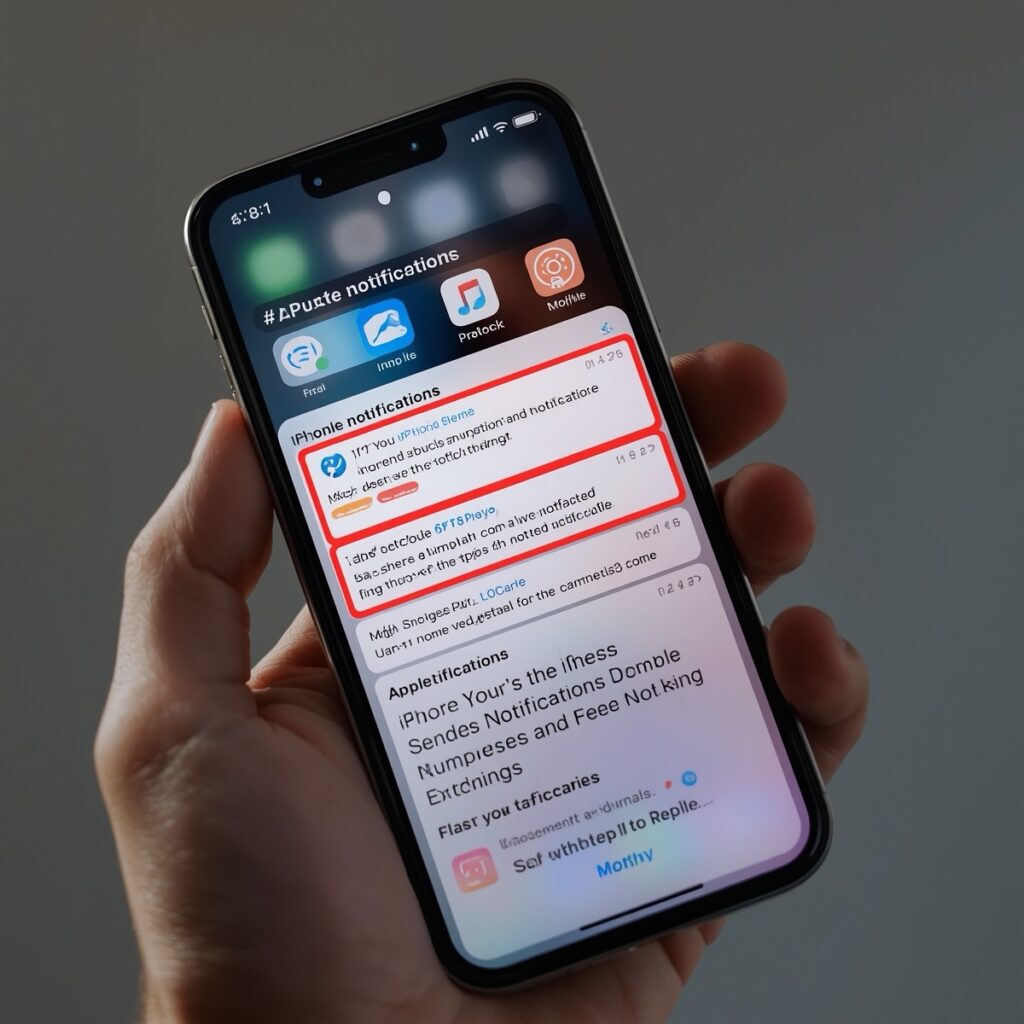
If your iPhone suddenly sends two identical alerts for one event, try these quick steps first: toggle the app’s notifications off and on, reboot, check Focus & Notification Summary, uninstall/reinstall the app. If the problem persists, capture a sysdiagnose and submit it to Apple via Feedback Assistant. This guide gives exact commands and the hidden developer links Apple engineers use.
Why this happens
iOS 18 introduced new notification routing and “notification summaries” powered by Apple Intelligence. Interaction between those features, mirrored devices (Mac/Watch), and some apps’ push token handling can cause duplicate or missing notifications. Many user reports show the issue is widespread since recent iOS 18 updates.
Quick fixes
Force-close the app and reopen it. Go to Settings → Notifications → (app) → toggle “Allow Notifications” off, wait 5 seconds, then on. Send a test. Reboot the iPhone. If you use a paired Mac, iPad or Watch: check Notifications settings on those devices, toggle them off/on to break mirroring loops. Check Focus and Scheduled Summary in Settings. Disable them temporarily to rule out duplication. Uninstall and reinstall the app. This forces a fresh push token.
Advanced fixes
Reset Location & Privacy: Settings → General → Transfer or Reset iPhone → Reset → Reset Location & Privacy. Reset Network Settings: Settings → General → Transfer or Reset → Reset → Reset Network Settings. Sign out of iCloud on secondary devices temporarily to test if duplication comes from mirroring. Temporarily disable Scheduled Summary or Apple Intelligence notifications.
Developer and server-side notes
Device push tokens can change after restore or reinstall. If two tokens exist for the same user, duplicate pushes may happen. Always listen for token updates. Check your push server is not sending both APNs push and in-app fallback for the same event. For MDM or enterprise setups, check for duplicate device enrollments.
How to gather diagnostics (sysdiagnose)
Reproduce the duplicate notification and note the exact time. Press and hold Volume Up + Volume Down + Side (Power) together for about 1–1.5 seconds. Release. You’ll feel a vibration and maybe see a screenshot. That generates a sysdiagnose.
Where to find official instructions: Apple sysdiagnose PDF:
How to report to Apple
If you are on a beta build: use the Feedback Assistant app (or applefeedback://). If you are on public iOS: use Apple Product Feedback: https://www.apple.com/feedback/ (choose iPhone). Attach the sysdiagnose, note the exact time of duplication, list iPhone model, iOS version, and whether other devices (Mac/Watch) also duplicated.
Hard-to-find official links
Manage notifications: https://support.apple.com/en-us/108781 iOS 18 update notes: https://support.apple.com/en-us/121161 Verge article on iOS 18.3 notification summaries: https://www.theverge.com/2025/1/27/24353079/ios-18-3-launch-notification-summaries-apple-intelligence-default Apple Bug Reporting (developers): https://developer.apple.com/bug-reporting/ Apple Product Feedback (public): https://www.apple.com/feedback/ Sysdiagnose instructions PDF: https://download.developer.apple.com/iOS/iOS_Logs/sysdiagnose_Logging_Instructions.pdf Apple Developer Forum — Notifications: https://developer.apple.com/forums/forums/topics/app-and-system-services/app-and-system-services-notifications
Best hashtags
#iOS18 #iPhoneTips #AppleHelp #NotificationFix #TechSupport #MobileDev
Call to action
If this solved your problem — share this post on Twitter, Threads, or LinkedIn with #iOS18 and tag @AppleSupport. If it didn’t, capture a sysdiagnose now and submit it via Feedback Assistant or Product Feedback. The more reports Apple gets, the faster they’ll fix it.



Leave a Reply