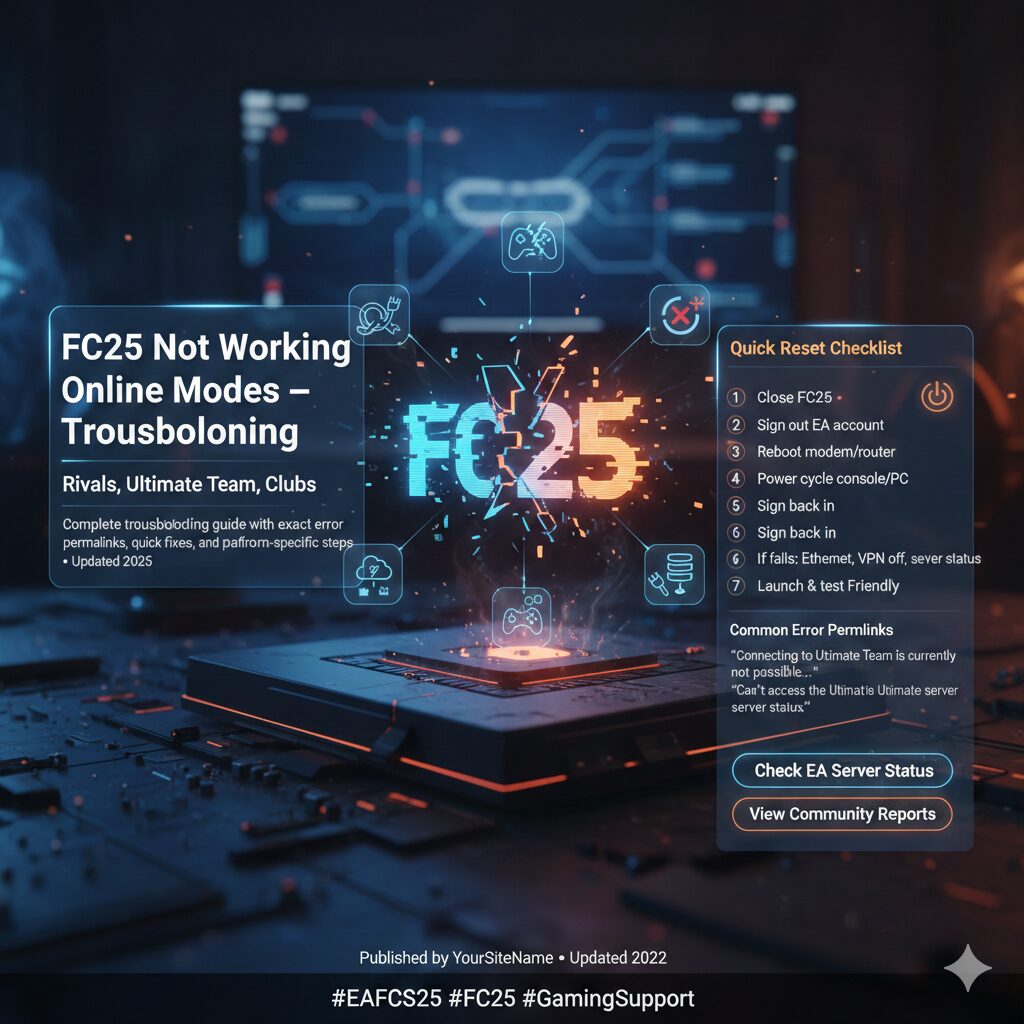
FC25 Not Working — Online Modes Troubleshooting (Rivals, Ultimate Team, Clubs)
Overview — how to use this guide
This post collects the most common FC25 online errors and gives focused, copy-pasteable fixes for each. Use the Common error permalinks section to jump to the exact message you see. The troubleshooting flow is:
- Check official EA server status and community reports.
- Run quick local network checks (wired vs Wi-Fi, VPN off).
- Apply mode-specific fixes (Rivals / Ultimate Team / Clubs).
- If unresolved — gather logs and contact EA Support with exact error text and timestamps.
Sources used for this guide: EA Help server & connection pages, EA community forums, community outage trackers and active user reports. See links in each section.
Step 1 — Check EA server & outage status
Before anything else, confirm whether the problem is a widespread server issue:
- EA official server status: EA Server Status.
- EA Help site for FC connection troubleshooting: How to troubleshoot EA SPORTS FC connection issues.
- Community outage reports: Downdetector — EA and EA Forums (player reports).
If EA lists degraded service or there are many recent outage reports, the issue is likely server-side — wait 15–60 minutes and recheck. For confirmed outages, follow EA Social (e.g., EAHelp on X) for updates.
Common error permalinks (click to jump straight to a focused fix)
“Connecting to Ultimate Team is currently not possible. You will be returned to the main menu.”
Quick fix: Check EA server status → try web app → clear local cache → relog EA account → if persists, delete recent squad changes on web app (some users reported this as a workaround).
Community reference: EA forum reports where users saw this message and temporary workarounds. EA Forum thread.
“Can’t access the Ultimate Team server. Try again later.”
Quick fix: Restart game & EA app, check for updates, disable VPN, check NAT type (open/strict), try different DNS (1.1.1.1 or 8.8.8.8), and verify your platform’s online services (PSN/Xbox Live).
Example: multiple user reports on EA forums showing this error during regional server hiccups. EA Forum example.
“The connection to your opponent has been lost” (Rivals / match drop)
Quick fix: Switch to wired Ethernet, reboot router, enable UPnP on your router or forward required ports, close bandwidth-heavy apps on your network, and try again. If the problem only happens on Wi-Fi, this strongly indicates local wireless instability.
Community discussion and examples: reddit thread.
Error 0x80832003 / Constant disconnects (often reported on Xbox)
Quick fix: Full power cycle router & console, clear local cache (console/PC), check for NAT/firewall conflicts, and try a different network to rule out ISP-level packet loss. If widespread, check Downdetector and EA status.
Forum example: EA Forum thread.
“Authentication token error” / fails to sign-in to EA
Quick fix: Sign out of the EA account on the console/EA App → remove saved credentials → sign back in. If you use the EA App on PC, reinstall if necessary. Check EA status for authentication services.
Network & NAT fixes — fast wins
Many FC25 online problems are networking related. Work through these in order:
- Wired connection: Use Ethernet instead of Wi-Fi where possible.
- Router reboot & modem power-cycle: Unplug for 60 seconds, then power back on (modem first, then router, then console/PC).
- Disable VPN / Proxy: VPNs commonly break matchmaking.
- Change DNS: Try Cloudflare (1.1.1.1) or Google (8.8.8.8) — faster, sometimes more stable than ISP DNS.
- Enable UPnP or Port Forwarding: UPnP is preferred. If you need to forward, common EA/FC ports include TCP: 80, 443 and UDP: 3478–3479, 3658 (varies by platform).
- Check NAT Type: Aim for Open (Xbox/PS) — Strict/Moderate can cause drops. Consult your platform docs for changing NAT to Open.
- QoS & bandwidth: If multiple users stream/download, enable QoS to prioritize gaming traffic or temporarily pause heavy transfers.
EA’s connection troubleshooting article contains step-by-step guidance for many of these items: EA: Troubleshoot connection issues.
Platform-specific cleanup (PS5 / Xbox / PC)
PlayStation 5
- Power cycle PS5: fully power off → unplug for 30+ seconds → restart.
- Clear game cache: Settings → Storage → Games and Apps → select FC25 → Clear cache/Data (use carefully — avoid deleting save/profile).
- Rebuild database (PS5 Safe Mode) if crashes or freezes persist.
Xbox Series X|S
- Power cycle console (hold power button until shutdown, unplug 30s).
- Clear local saved games if profile sync problems occur (they resync from cloud).
- Check Xbox Live status for platform issues: Xbox Status.
PC (EA App / Steam / Epic)
- Repair/Verify files (Steam: Verify integrity; EA App: Repair install).
- Run EA App as Administrator and ensure Windows firewall allows the game.
- Try clean reinstall of EA App if persistent auth or connection token errors occur.
- Temporarily disable third-party overlays or security software which can block connections.
Mode-specific fixes: Rivals, Ultimate Team, Clubs
Rivals / Online Seasons
Symptoms: failed matchmaking, “connection to opponent lost”, match cancels mid-game.
- Try 1v1 search at different times — if matchmaking pool is low, waits increase and drops happen more frequently.
- Switch from Wi-Fi to wired. If wired works, address wireless interference at home.
- Lower in-game settings like replay buffering (doesn’t usually affect networking but can reduce stuttering).
- If you experience repeated drops, collect timestamps and check if other players report outages (EA forums / Downdetector).
Ultimate Team (Division Rivals / Champions / Transfers)
Symptoms: cannot log into UT, squad edits fail, store or web app errors.
- Check EA server status first. If servers are fine, try the EA Web App to see if your squad and transfers work there.
- Sign out of EA account on all devices and sign back in (clears stale session tokens).
- Clear local cache (console) and uninstall/reinstall EA App (PC) if auth persists.
- If a specific action (e.g., saving a squad edit) triggers the crash, try reversing the last changes via the Web App; users report this sometimes unblocks the session.
Clubs (Drop-in / Friendlies / RUSH)
Symptoms: club session fails to create, other players can’t join, session freezes on loading screen.
- Ensure all club members have matching game versions and cross-play setting compatibility.
- Leader should create a fresh session (leave existing one), and club members should rejoin via the Clubs menu rather than invites.
- If the host has a strict NAT or unstable connection, ask a different club member to host.
Quick reset checklist (copy & paste)
1) Close FC25
2) Sign out of EA account on platform and EA App
3) Reboot modem & router (power off 60s)
4) Power cycle console/PC (unplug 30s)
5) Sign back into EA account
6) Launch FC25 and test a simple Online Friendly
7) If still failing: switch to Ethernet, disable VPN, check EA server status
This short sequence resolves the majority of transient issues reported by players.
When to contact EA Support (what to include)
If you’ve completed the troubleshooting steps and the issue remains, open a support ticket with EA. Include:
- Exact error message text (copy it or screenshot it).
- Platform (PS5 / Xbox / PC + storefront) and game build/version if visible.
- Approximate timestamps (including timezone) when the issue occurred.
- Steps you already tried (network, power cycle, cache clear, web app, etc.).
- Traceroute or ping logs to EA servers if you know how to produce them (advanced).
Start at EA Help / contact: EA Help Contact and check the FC25 technical forums for ongoing incidents: EA FC25 Technical Issues.
Conclusion
Most FC25 online problems are either (a) temporary server-side incidents, or (b) local network/NAT issues. Use the permalinks above to jump directly to the error you see, follow the ordered checklist (server check → network fixes → platform cleanup → mode-specific actions), and contact EA Support only after capturing logs and timestamps. This structured approach will save time and help resolve or properly escalate issues.

Leave a Reply