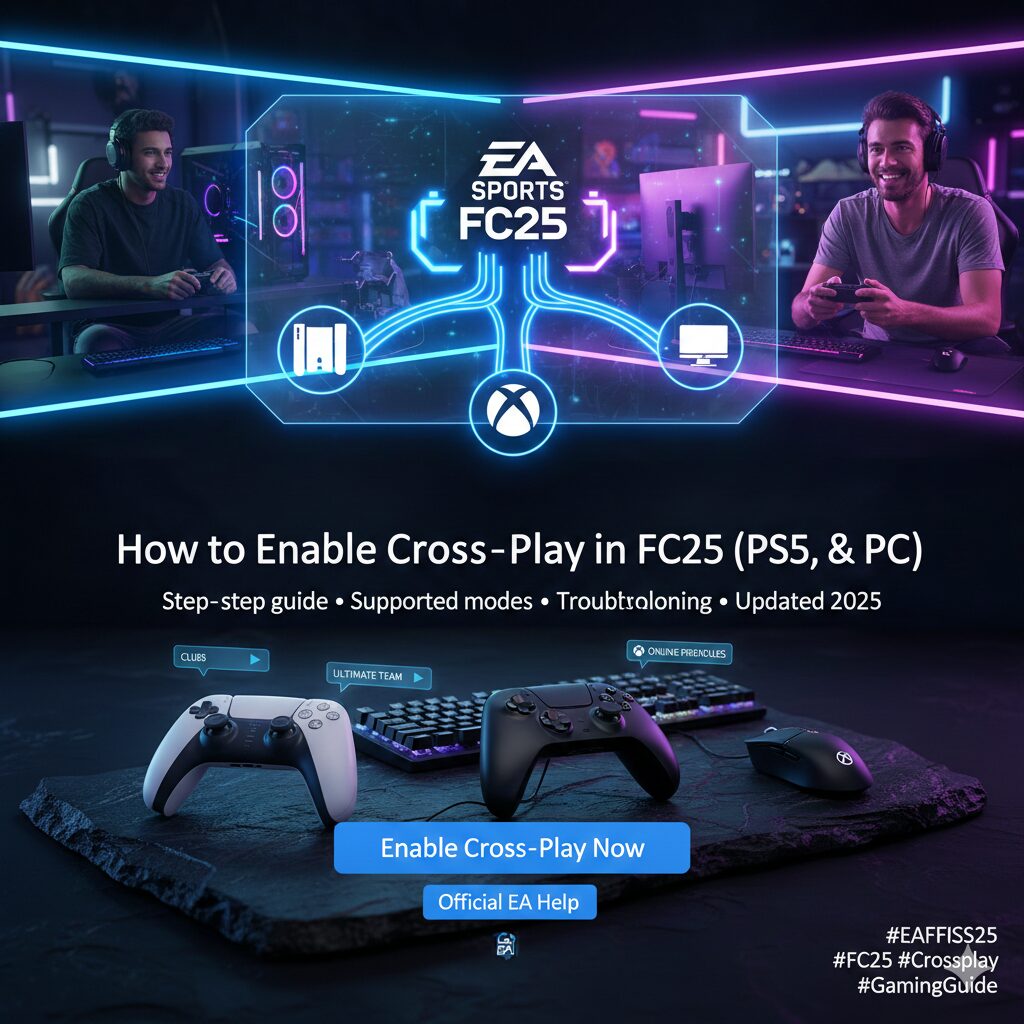
How to Enable Cross-Play in EA SPORTS FC25 (PS5, Xbox & PC)
Quick answer — Is FC25 cross-play?
Yes. EA SPORTS FC25 supports cross-play across next-gen consoles and PC (PS5, Xbox Series X|S, and PC together) and a separate last-gen group (PS4 & Xbox One). Cross-play availability depends on the specific online mode — read on for which modes support it, how to enable it, and what to check if it won’t match.
Which Platforms & Modes Support Cross-Play in FC25
Platform groups
- Next-gen / PC group: PS5, Xbox Series X|S, and PC (Origin/Steam/Epic) — these usually match together.
- Last-gen group: PS4 and Xbox One — these match within the last-gen block.
- Note: Cross-play is not typically available with Nintendo Switch builds in the same way; check the latest platform notes for exceptions.
Supported game modes (common)
Cross-play typically works in many online modes such as:
- Clubs (Drop-in, Friendlies, League, Playoffs, RUSH)
- Co-op Seasons & Cups
- Online Friendlies & Online Seasons
- Ultimate Team modes (Division Rivals, Champions, Online Draft, Friendlies, Play-a-Friend, RUSH)
- Pro Clubs and other social/competitive modes
Tip: If a mode doesn’t appear to support cross-play in your build, check the mode’s matchmaking options and the official EA help pages for the latest mode list.
How to Enable Cross-Play in FC25 — Step by Step
Follow these steps to enable cross-play and make sure it’s active before matchmaking.
- Start EA SPORTS FC25 and open the main menu.
- Open the Social / Friends widget: look for EA Connect or the social panel (usually bottom-right of the main menu).
- Go to Social Settings → Cross-Play → Cross-Play Settings.
- Toggle “Cross-Play Enabled” to Yes.
- Optionally: Customise → Online Settings → Matchmaking Options to double-check matchmaking preferences.
- If using Ultimate Team: open UT → Settings → Matchmaking Settings and confirm cross-play is enabled for UT matchmaking.
Note: Changes to cross-play usually apply before matchmaking and cannot be toggled mid-match. Make sure all players in your group have cross-play enabled.
Troubleshooting: When Cross-Play Appears Not to Work
If cross-play doesn’t seem to work after enabling it, go through this checklist:
- Verify all players have cross-play turned on in their settings.
- Confirm players are in the same platform generation group (next-gen vs last-gen).
- Ensure you are trying a cross-play supported mode (see list above).
- Restart the game and log out/in of your EA account — sometimes this resets matchmaking pools.
- Check for game updates — different platform builds must match the same version to match properly.
- If on PC, verify you are running the correct version (Steam/Epic/Origin) and that your build is up-to-date.
- Disable VPNs / proxies that may interfere with matchmaking.
- Check EA server status pages or official support channels if widespread issues are reported.
Quick reset steps
1. Close FC25 → 2. Sign out of EA account → 3. Restart console/PC → 4. Sign back in → 5. Relaunch and re-enable cross-play
Why Use Cross-Play? Key Benefits
- Play with friends on other platforms — no need to own the same console to squad up.
- Faster matchmaking due to a larger player pool.
- Access diverse opponents — different platforms often bring varied playstyles.
- Support for major online modes like Ultimate Team, Clubs, Seasons, Friendlies, and more.
Conclusion
Cross-play makes EA SPORTS FC25 more social and flexible. Activating it is straightforward, but platform groups and mode support matter. Follow the step-by-step instructions above, and if you hit issues, use the troubleshooting checklist to get back online quickly. Embed this guide into your workflow — make a Short answering “Is FC25 crossplay?” and link to this page to drive traffic and help others.
Leave a Reply