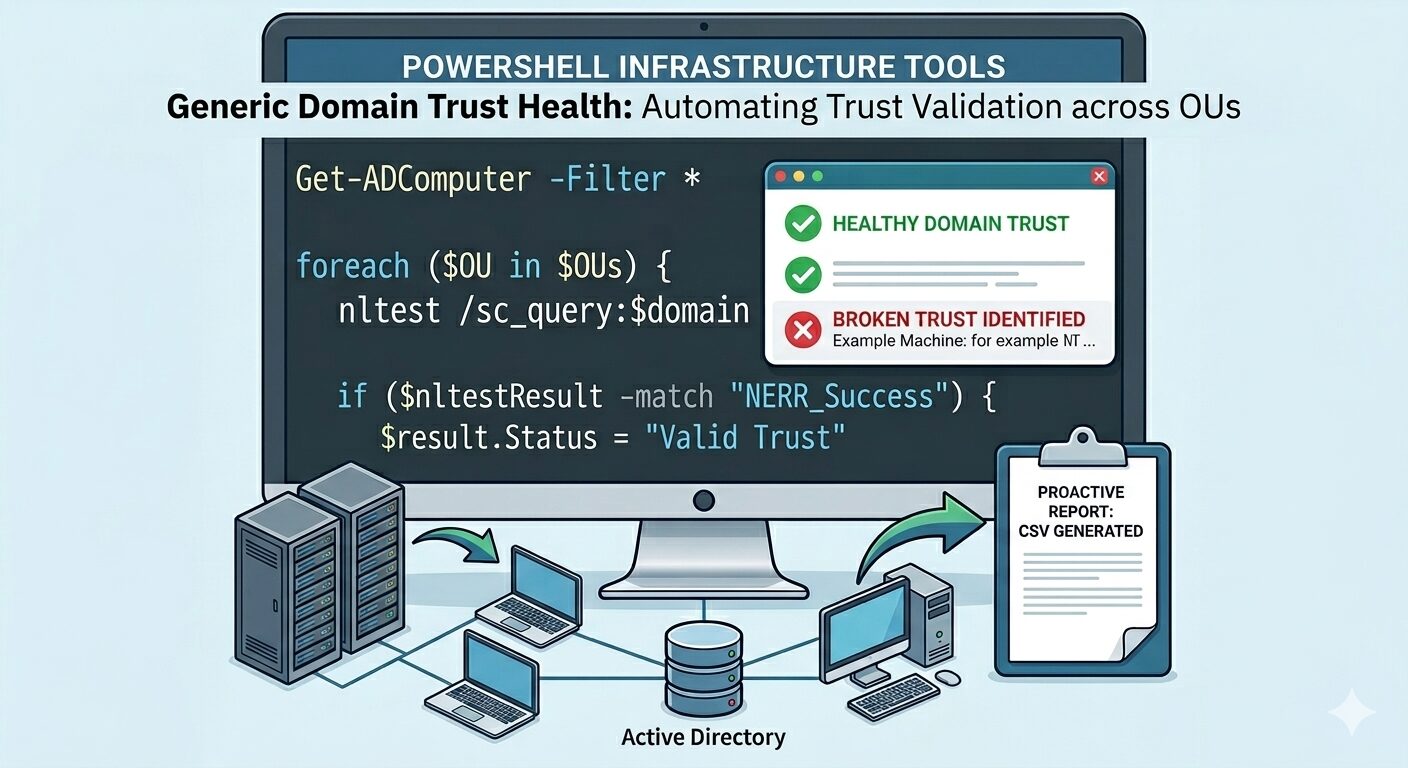
In a large-scale enterprise environment, few things are as disruptive to end-users as the dreaded message: “The trust relationship between this workstation and the primary domain failed.”
For IT teams, this is often a reactive battle. We wait for the help desk ticket to arrive, then we scramble to rejoin the machine to the domain. But as any Senior Systems Engineer knows, high-availability infrastructure isn’t just about fixing things when they break—it’s about preventing the break in the first place.
Today, I’m sharing a two-stage PowerShell automation framework I developed to proactively validate Active Directory trust relationships across specific Organizational Units (OUs).
The Strategy: Targeted Validation
Scanning an entire Active Directory environment can be resource-heavy and produce unnecessary noise. This script takes a surgical approach by focusing on mission-critical sectors—such as retail workstations or infrastructure servers.
Stage 1: Intelligent Inventory Discovery
The first phase of the script connects to Active Directory and pulls live data from defined OUs. By using Get-ADComputer, we ensure we are working with the most current objects in the database.
PowerShell
# Define target OUs for high-priority assets
$OUs = @(
    "OU=Workstations,OU=Retail,OU=RegionalBranch,OU=Corporate,DC=corp,DC=contoso,DC=com",
    "OU=Servers,OU=Infrastructure,OU=RegionalBranch,OU=Corporate,DC=corp,DC=contoso,DC=com"
)

foreach ($OU in $OUs) {
    # Extracting names for clean processing
    $computers += Get-ADComputer -Filter * -SearchBase $OU -Property Name | Select-Object -ExpandProperty Name
}
This list is then exported to a temporary inventory file, creating a bridge between the discovery phase and the validation phase.
Stage 2: The Trust “Stress Test”
Once we have our inventory, the script performs a real-world validation of the Secure Channel.
Simply “pinging” a server isn’t enough; a machine can be online but still unable to authenticate users. The script uses the powerful nltest utility to query the domain trust status directly from the remote server’s perspective.
The Workflow Logic:
- Connectivity Check: A quick
Test-Connectionensures the host is online, preventing the script from hanging on unresponsive machines. - Secure Channel Query: The script executes
nltest /sc_queryagainst the target domain. - Regex Pattern Matching: It parses the output for the string
NERR_Success. If it’s missing, the machine is flagged immediately.
PowerShell
if ($nltestResult -match "NERR_Success") {
    $result.Status = "Valid Trust"
} else {
    $result.Status = "Broken Trust"
}
From Code to Management Insights
One of the most important aspects of infrastructure engineering is visibility. This script doesn’t just run in a vacuum; it produces a clean, timestamped CSV report.
| ComputerName | Status |
|---|---|
| RETAIL-POS-01 | Valid Trust |
| RETAIL-POS-09 | Broken Trust |
| INFRA-SRV-04 | Host Offline |
Export to Sheets
Why this matters:
- Efficiency: Systems engineers can start their day with a “hit list” of exactly which machines need attention.
- Proactivity: You identify “Broken Trust” issues before the users even attempt to log in for their shift.
- Auditability: You maintain a historical record of domain health, which is invaluable for compliance and reporting.
Conclusion
Automation is the difference between a “firefighter” and a “fire marshal.” By implementing this PowerShell framework, you move your IT operations toward a more stable, predictable, and enterprise-grade posture.
What tools are you using to monitor AD health? I’d love to hear your thoughts in the comments!
Oren Sharon is a Senior Systems & Infrastructure Engineer specializing in automation, enterprise IT, and proactive network management.

Leave a Reply