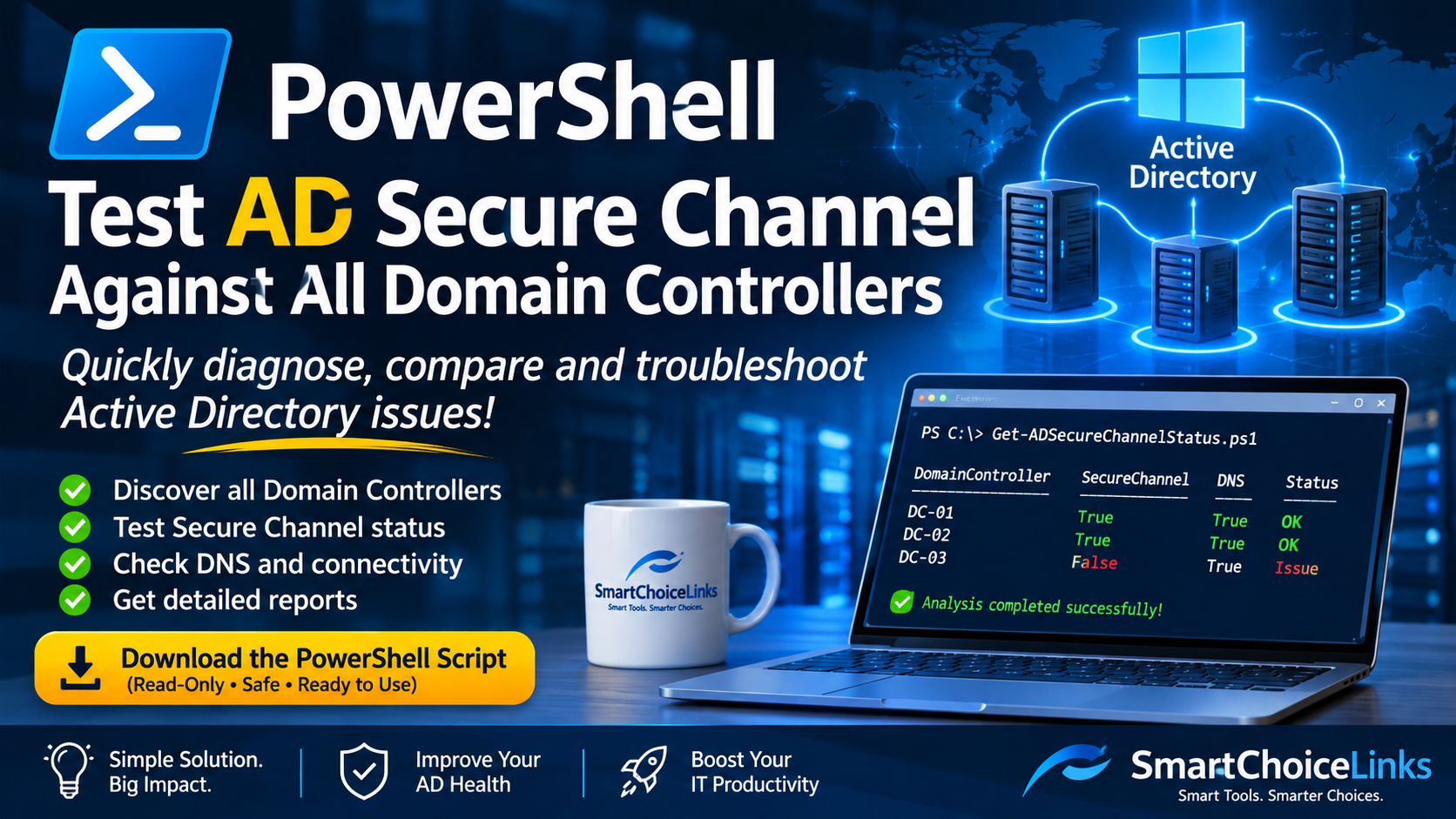
Test an Active Directory Secure Channel Against Every Domain Controller with PowerShell
A practical, read-only diagnostic guide and downloadable script to discover domain controllers, test the computer secure channel against each one, identify inconsistent results, and produce a report you can use to investigate the problem.
The simple answer
Use PowerShell’s Test-ComputerSecureChannel cmdlet with its -Server parameter to test the local computer’s secure channel against a specific domain controller. To compare results, discover the domain controllers in the computer’s domain and run the test once for each discovered DC.
Test-ComputerSecureChannel -Server 'dc01.contoso.com' -VerboseA True result means the secure-channel test succeeded for that computer and selected DC at the time of the test. A False result means the test did not validate successfully. An exception may indicate a discovery, connectivity, permissions, or other operational problem; capture the error rather than treating every exception as a broken machine password.
Why test the secure channel against every domain controller?
A computer normally locates a domain controller through Windows domain-controller discovery and site-aware mechanisms. If a machine behaves differently depending on which DC it contacts, a single successful test can hide an inconsistent path or a DC-specific issue.
Testing each discoverable DC can help narrow the investigation. It is not a complete Active Directory health assessment: it does not validate replication, SYSVOL, Group Policy processing, DNS zone health, Kerberos ticket behavior, or every required firewall path.
One DC succeeds, another fails
Investigate DC-specific reachability, DNS answers, site/subnet mapping, time, Netlogon, and replication health.
Every DC fails
Check domain membership, machine account state, DNS client configuration, time synchronization, network access, and relevant event logs.
Discovery fails
Confirm the computer is domain-joined, DNS points to appropriate AD DNS servers, and a DC can be located.
Results change over time
Compare timestamps, network/VPN state, site location, DC availability, and recent machine-account or infrastructure changes.
Prerequisites and compatibility
- A Windows computer joined to the target Active Directory domain.
- A user context permitted to run the diagnostic cmdlet; use an elevated PowerShell session if required by your environment.
Test-ComputerSecureChannel, available on supported Windows client/server systems with the relevant Windows PowerShell functionality.- Domain-controller discovery through the ActiveDirectory PowerShell module, or .NET domain discovery as a fallback.
- DNS and network connectivity to the domain controllers being tested.
- For optional TCP checks, permission to test network reachability from the computer to the listed DC ports.
Download the complete diagnostic script
The script discovers domain controllers, performs a secure-channel test against each one, records DNS resolution, and exports both CSV and HTML reports. Optional TCP checks are available for selected ports.
Test-ADSecureChannelAllDCs.ps1
Read-only · CSV + HTML output · Optional TCP port checks · No automatic repair
What the script does
- Attempts DC discovery using the ActiveDirectory module, when installed.
- Falls back to .NET domain discovery if the module is unavailable or its query fails.
- Resolves each DC hostname to IP addresses.
- Runs
Test-ComputerSecureChannel -Server <DC FQDN>. - Optionally checks TCP ports 88, 135, 389, 445, 636 and 3268.
- Writes timestamped CSV and HTML reports to the selected output directory.
Port checks are basic TCP connection tests, not proof that the corresponding AD service is healthy or that all required AD communication is permitted. The port set is illustrative and may not cover your environment’s requirements.
How to run the PowerShell diagnostic
Save the script
Download Test-ADSecureChannelAllDCs.ps1 and save it in a working folder, for example C:\Admin\Scripts.
Open PowerShell
Use an approved administrative workstation or the affected domain-joined computer. Follow your organization’s execution policy and script-signing requirements; do not weaken policy globally just to run an unknown script.
Run the default read-only test
From the script folder, run:
.\Test-ADSecureChannelAllDCs.ps1Choose an output folder and optional TCP checks
.\Test-ADSecureChannelAllDCs.ps1 `
  -OutputDirectory 'C:\Temp\ADHealth' `
-TestTcpPortsReview the reports
Open the HTML report for a quick review. Use the CSV report for filtering, comparison, ticket attachments, or further analysis. Treat hostnames, IP addresses, and error messages as internal infrastructure data.
Sample output: what good and bad results look like
The following is illustrative sample data, not output from a real domain. Your results will depend on your domain, endpoint, network, and DC configuration.
Discovering domain controllers for WS-CLIENT-07 ...
Testing dc01.contoso.com ...
Testing dc02.contoso.com ...
Testing dc03.contoso.com ...

1 of 3 domain controller tests did not return True.
Investigate the affected DCs and network path.

CSV : C:\Temp\ADSecureChannelReport\WS-CLIENT-07-ADSecureChannel-20261126-103000.csv
HTML: C:\Temp\ADSecureChannelReport\WS-CLIENT-07-ADSecureChannel-20261126-103000.html

Read-only diagnostic: no repair or AD changes were performed.| Computer | Domain controller | DNS | Secure channel | Initial interpretation |
|---|---|---|---|---|
| WS-CLIENT-07 | dc01.contoso.com | Resolved | True | Test succeeded against this DC. |
| WS-CLIENT-07 | dc02.contoso.com | Resolved | True | Test succeeded against this DC. |
| WS-CLIENT-07 | dc03.contoso.com | Resolved | False | Investigate this DC and the path to it. |
Do not conclude from one failed row that the machine account is definitely broken. Confirm the result, inspect the captured exception (if any), compare DNS and connectivity, and check DC health before considering a repair.
Troubleshooting: common results and next checks
1. Test-ComputerSecureChannel returns False for one DC
Repeat the test against that DC and a known-good DC. Check whether the endpoint can resolve and reach the failing DC, whether the DC is healthy, and whether the endpoint is using the expected DNS servers and AD site. Review Netlogon and System event logs on the endpoint and DC.
Test-ComputerSecureChannel -Server 'dc03.contoso.com' -Verbose2. The cmdlet throws an exception
Capture the full error record. Check name resolution, route/VPN state, firewall rules, DC availability, and whether the selected hostname is a valid DC FQDN. An exception is not the same thing as a confirmed secure-channel password mismatch.
3. Domain controller discovery fails
Check domain membership and DNS client configuration. From the endpoint, you can also run:
nltest /dsgetdc:contoso.comReplace contoso.com with your actual AD DNS domain. A DC locator failure points to a discovery/connectivity investigation before you attempt a secure-channel repair.
4. DNS resolves, but the secure-channel test fails
DNS resolution only proves that a name resolved to an address. It does not prove that Kerberos, LDAP, SMB, RPC, Netlogon, time synchronization, or replication are healthy. Check the ports and protocols required by your topology and security policy.
5. All DC tests fail
Validate that the endpoint is domain joined and has the correct DNS client settings. Check time synchronization, VPN/network reachability, machine-account status, Netlogon service state, and relevant event logs. Compare with another known-good domain-joined endpoint on the same network.
6. One site or subnet behaves differently
Review AD Sites and Services subnet mapping, site-link configuration, DNS SRV records, and the DCs advertised to that client location. A site mapping issue can send clients to unexpected DCs.
Should you repair the secure channel?
Only after you have collected evidence and identified the likely cause. Repair operations can change the machine-account password relationship and should be performed under your organization’s change-control process, with appropriate privileges and a recovery plan.
Test-ComputerSecureChannel -Repair or reset the computer account just because one DC test failed. First confirm the scope of the failure, verify DC health and connectivity, and coordinate with the AD team.Microsoft documents Test-ComputerSecureChannel as a cmdlet for testing and, when explicitly requested, repairing the secure channel. Read the official documentation and your organization’s operational procedures before using repair options.
What this diagnostic does not prove
- It does not prove Active Directory replication is healthy. Use appropriate replication diagnostics such as
repadminand review the results in context. - It does not validate SYSVOL or NETLOGON share availability, Group Policy processing, or DFSR health.
- It does not guarantee that every required AD port is open. The optional TCP checks are a limited reachability sample.
- It does not test every computer in the domain. It tests the computer on which the script is run.
- It does not establish that a DC is globally healthy merely because one secure-channel test returns True.
Frequently asked questions
How do I test an Active Directory secure channel against a specific domain controller?
Run Test-ComputerSecureChannel -Server 'dc01.contoso.com' -Verbose on the domain-joined computer. Replace the example hostname with the DC FQDN you want to test.
Can I test the secure channel against all domain controllers with PowerShell?
Yes. Discover the domain controllers in the computer’s domain and run Test-ComputerSecureChannel -Server for each one. The downloadable script in this guide automates that read-only comparison and exports reports.
Does Test-ComputerSecureChannel repair the computer account automatically?
No. A normal test checks the secure channel. Repair is a separate, explicit operation. The included script does not use the repair option.
Why does the secure-channel test succeed against one DC but fail against another?
Possible causes include DC-specific connectivity, DNS, site selection, DC health, time, Netlogon, or replication issues. A single inconsistent result is a reason to investigate the endpoint-to-DC path; it is not by itself proof of a broken machine-account password.
Do I need the ActiveDirectory PowerShell module?
The script prefers the ActiveDirectory module for DC discovery. If it is unavailable or its query fails, it attempts .NET domain discovery. The computer must still be domain joined and able to locate a domain controller.
Which ports should I test between a client and a domain controller?
Required ports depend on the Windows versions, services, topology, and operations in use. The optional script checks a small illustrative subset only. Use Microsoft’s current port requirements and your network team’s approved rules for a complete assessment.
Can I run this script remotely against every computer in my domain?
Not as written. It runs locally on one computer. A remote deployment would need an approved management mechanism, appropriate credentials, error handling, and careful control of concurrency and output collection.
Make infrastructure problems simpler to diagnose.
SmartChoiceLinks also offers Advanced Tech Solutions & AI Services for organizations that need practical Windows Server, Active Directory, VMware, PowerShell automation, infrastructure troubleshooting, and technical problem-solving support.
For a service discussion, describe your environment, symptoms, urgency, and the outcome you need.
Explore Global IT Services →Related posts:
 How to Create Viral Animated AI Videos for FREE with Gemini and Google Flow (2026 Guide)
 3 Radical, Scientifically Grounded Ways Humans Will Travel from Buenos Aires to Or Akiva in Under 2 Hours
 Avengers: Doomsday Special Look – Doctor Doom Explained
 Marvel Strike Force Character Guides & Shard Calculators


Leave a Reply